Images
Description
Enhances images with automatic click-to-enlarge functionality. When images are displayed smaller than their natural size, they become clickable and open in a new window at full resolution.
Usage
Place images inside <figure> elements. The system automatically detects when images are displayed smaller than their natural size and makes them clickable.
Available Options
- CSS Classes:
.image- Standard image figure (default).full-width- Image spans full container width.largest- Image width: 2000px.larger- Image width: 1100px.large- Image width: 900px.small- Image width: 600px.smaller- Image width: 400px.smallest- Image width: 200px.left- Float image to the left.right- Float image to the right
- Automatic Features:
- Click-to-enlarge for images displayed smaller than natural size
- Cursor changes to pointer when image is clickable
- Tooltip shows percentage larger the full image is
- Keyboard accessible (Enter/Space keys)
- Threshold:
- Images become clickable when displayed at less than 75% of natural size
Examples
Basic Images
Small Images (Clickable)
Large Images (Not Clickable)

Images in Different Contexts

Images with Mixed Content

Quality Control
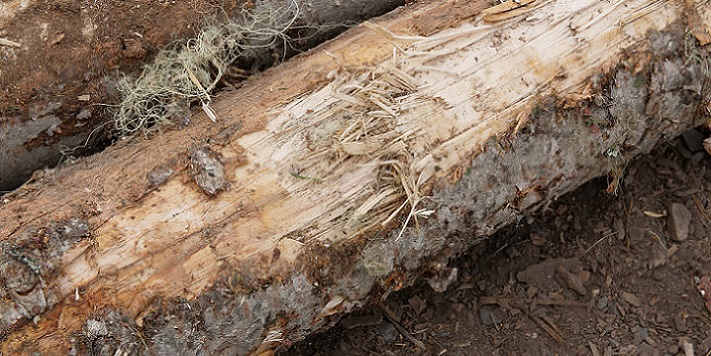
This image shows a cut mark on a log, which is important for quality control in lumber processing.
- Check for proper cutting angles
- Ensure clean cuts
- Document any irregularities
Images with Size Classes
Floating Images
This text wraps around the left-floated image. The image is positioned to the left side of the container, and text flows around it on the right side. This is useful for creating more dynamic layouts where images and text interact naturally.
This text wraps around the right-floated image. The image is positioned to the right side of the container, and text flows around it on the left side. Floating images can be combined with size classes to create various layout effects.
Images in Activity Containers
Image Analysis Activity
Click on the image above to view it in full size for detailed analysis.
Notes
- Images must be inside
<figure>elements to work - Size classes (largest, larger, large, small, smaller, smallest) control image width
- Floating classes (left, right) position images and allow text to wrap around them
- Size and floating classes can be combined (e.g.,
class="image left small") - Images in sliders are excluded from click-to-enlarge functionality
- The system automatically calculates if an image is displayed smaller than 75% of its natural size
- Clickable images show a tooltip indicating how much larger the full image is
- Images open in a new window/tab when clicked
- Supports keyboard navigation (Enter/Space keys)
- The feature works automatically - no additional classes or attributes needed
- Responsive design ensures images work well on all screen sizes